To make an image responsive in Epic:
Once you have the image sized, saved and minimized filesize using TinyPNG.com, or using an existing image already uploaded to Epic content:
- With the content item open insert cursor to where you want the image and select the Image icon from the toolbar.
- Select the image or upload a new image.
- In the Image Selection Details dialog box, be sure to check off Use real path to image. DO NOT USE THUMBNAILER!
- Insert the image.
- Double-click on the image in the WYSIWYG to open the Image Properties window.
- Highlight the value in the Width field and hit Delete on your keyboard. Ensure there are no values in Width and Height fields. Should also not contain 0.
- Click on the Advanced tab
- Under the Stylesheet Classes field, type img-responsive
- Choose OK
- Save.
The image will now size to the width of any container it is placed in (or to the width of the page). Please note, if the image is not wide enough, ie: 400 pixels wide, coding it responsive will not scale it larger to fit the space.
Therefore, it is recommend to save images a minimum of 1,000 pixels wide.
The content area width of HortTrades, LandscapeTrades and LandscapeOntario are currently 847.5 pixels wide.
Illustration of Step 7: Where to add the code to use the responsive image class
Double-click an image in EPIC, select the Advanced tab and enter the Stylesheet Class as img-responsive
Make sure the image was inserted using real path to image and not thumbnailer
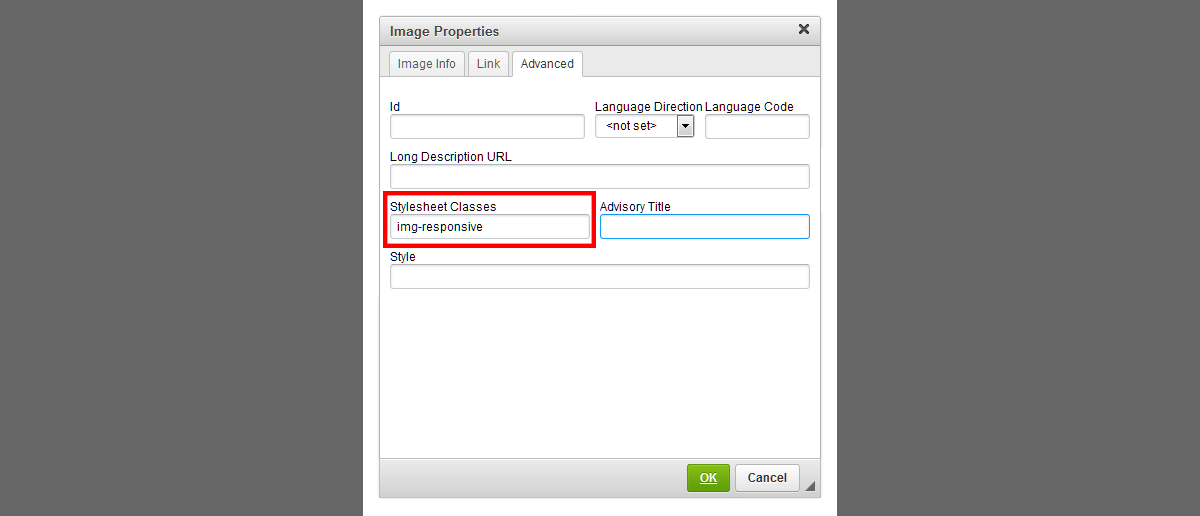
The above image is responsive.
If the image was inserted using thumbnailer, alter the source code using the example below or re-insert the image.
Thumbailer image:
<img alt="" src="/thumbnailer.php?image=/assets/1570469425.Image_properties_img-responsive_field-wide.png&imgWH=800" style="width: 800px; height: 344px;" />
Delete the path to the thumbnailer, leaving only /assets/ as the path. (highlighted in green above)
Delete any sizing after the filename. Leave closing quotes. (highlighted in orange above)
Add the img-responsive class (highlighted in pink below)
<img alt="" class="img-responsive" src="/assets/1570469425.Image_properties_img-responsive_field-wide.png" />
Alternate method
All of the code changes above can also be made using the Image Properties dialog box, accessible by double-clicking on an image in Epic WYSIWYG.
Image Info tab: In the URL field, remove the path that references the thumbnailer (in green above).
Image Info tab: Delete any references to sizing (width, height) leaving the values blank (not 0).
Advanced tab: Type img-responsive under the Stylesheet Classes and make sure to delete any sizing or text in the bottom Style field.

This image was inserted using the Thumbnailer and specifying a pixel size, so it is not responsive.