Page Titles are automatically injected at the top of a content item on LO websites. The text for the Page Title is whatever appears in the Title field of an Epic content item.
Changing the Page Title will also change the title/heading/headline on the actual page (but will not change the permalink/URL of the page).
The image below shows the existing style of a Page Title on HortTrades.com or LandscapeOntario.com.
Note, on LandscapeTrades.com the text is blue (style specific to that domain). 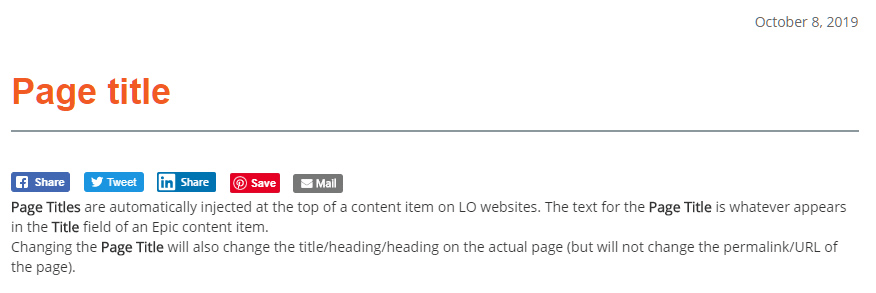
It is possible to specify a different page title, other than what appears in the Title field, add deck, or hide the Page Title entirely. Did you notice it was missing from the top of this page?
Custom page title
To override the style and simple add a new Page Title/headline without the horizontal rule and spacing defined in the style for the website, simply type in your new title/heading at the top of the page in the Epic WYSIWYG and apply the Heading 1 style or add <h1> before the text and </h1> after the text in the source code.
Epic searches for the use of an <h1> tag, and if it finds one — even if it’s applied to a space at the bottom of a page (as was done for this page) or applied to an image, it will then not display the automatic Page Title using the text in the Title field.
Typing in a heading and applying the Heading 1 style will result in the example below.
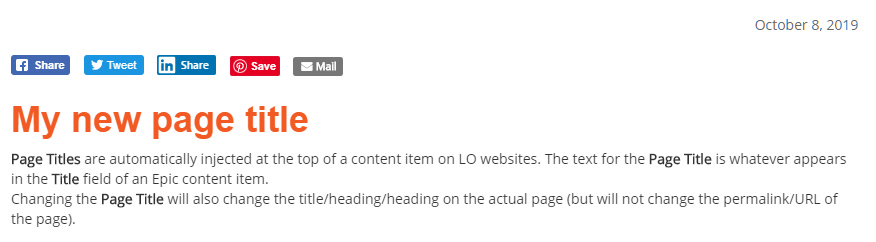
Note how the heading does not include the horizontal rule underneath, nor does in apply the same horizontal spacing above and below. Currently, doing this also changes the position of the Social icons.
Here is the code:
<h1>My new page title</h1>
Custom page title in the same style of website
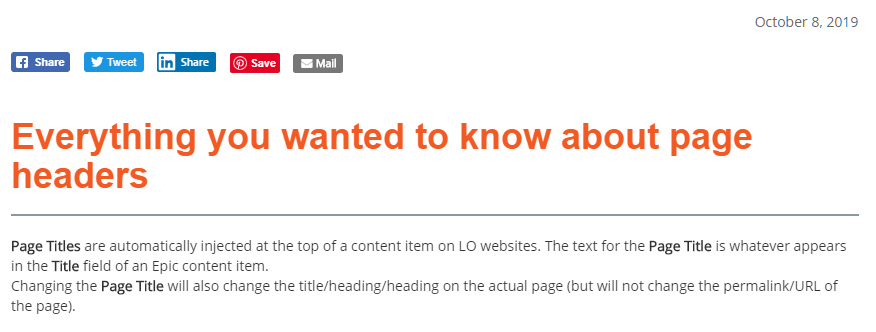
If you want to keep the style of the website exactly (and keep the Social icons in the same spot), but use a custom headline/heading/ Page Title style, you must use the following in the source code at the top:
<div class="page-header">
<h1>Everything you wanted to know about page headers</h1>
</div>
Below is the result:
Further customization with a deck
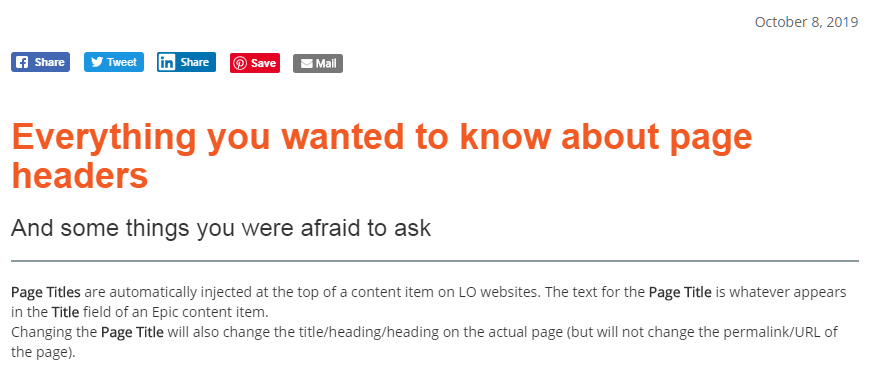
If you then wanted to go even further and add a deck (or even to use the original Title but also include a deck, use the following code in the source:
<div class="page-header">
<h1>Everything you wanted to know about page headers</h1>
<h3>And some things you were afraid to ask</h3>
</div>
Below is the result:
To hide a Page Title
Again, if you do not want the Page Title to appear, simply put and image in an <h1></h1> tag, or include the tags at the very bottom of your content page.